Customize Your Carousel
Once your carousel is generated, you can fully customize how it looks and what information it displays. This helps you align your carousel with your personal brand.
⚙️ Customize Carousel Settings
Go to the Settings tab on the right panel. This is where you control what appears on your carousel.
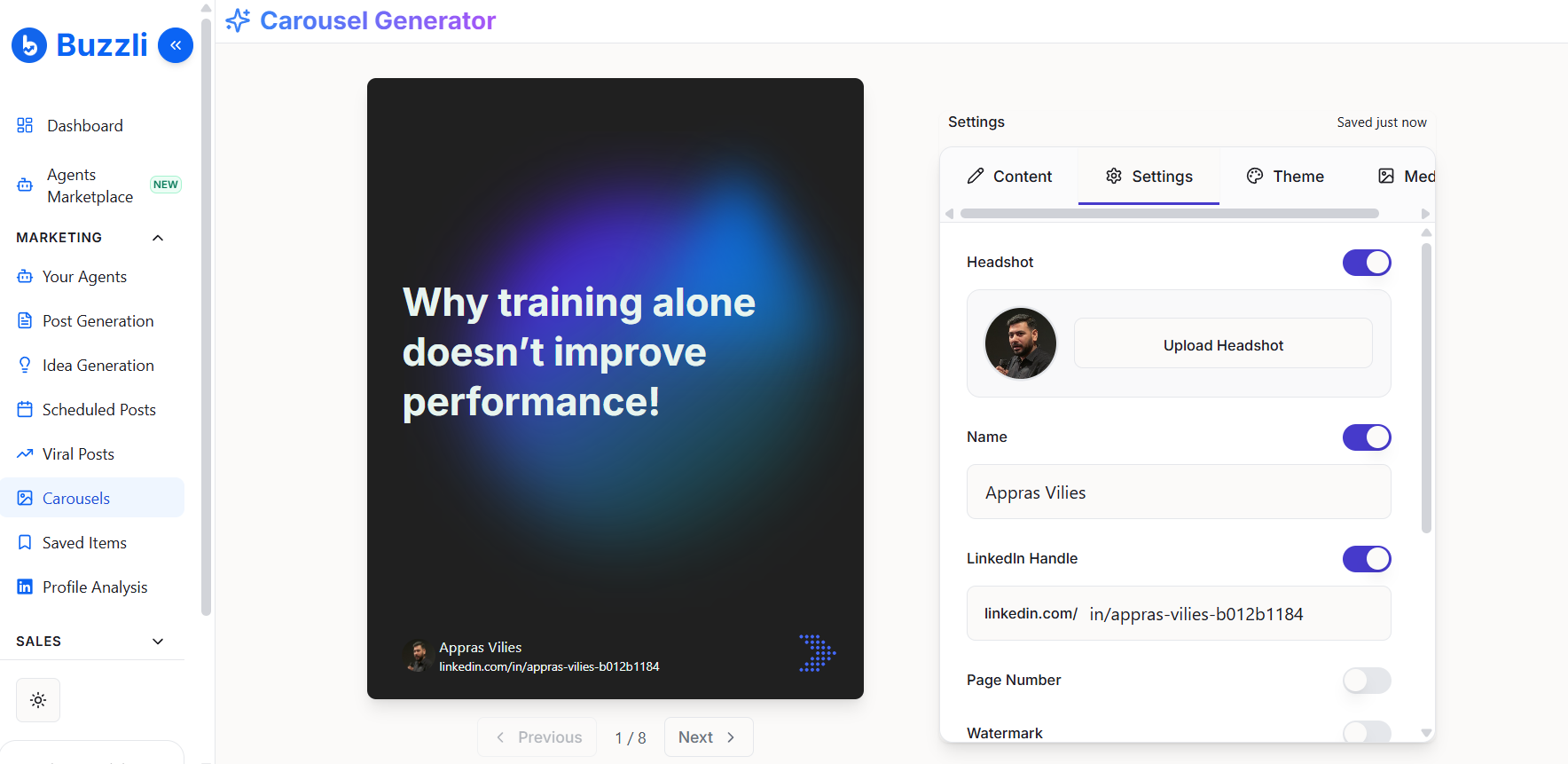
Profile Details
You can:
- Upload or update your Headshot
- Edit your Name
- Add or update your LinkedIn profile link
You can also toggle these ON/OFF based on whether you want them visible on your slides.
Additional Elements
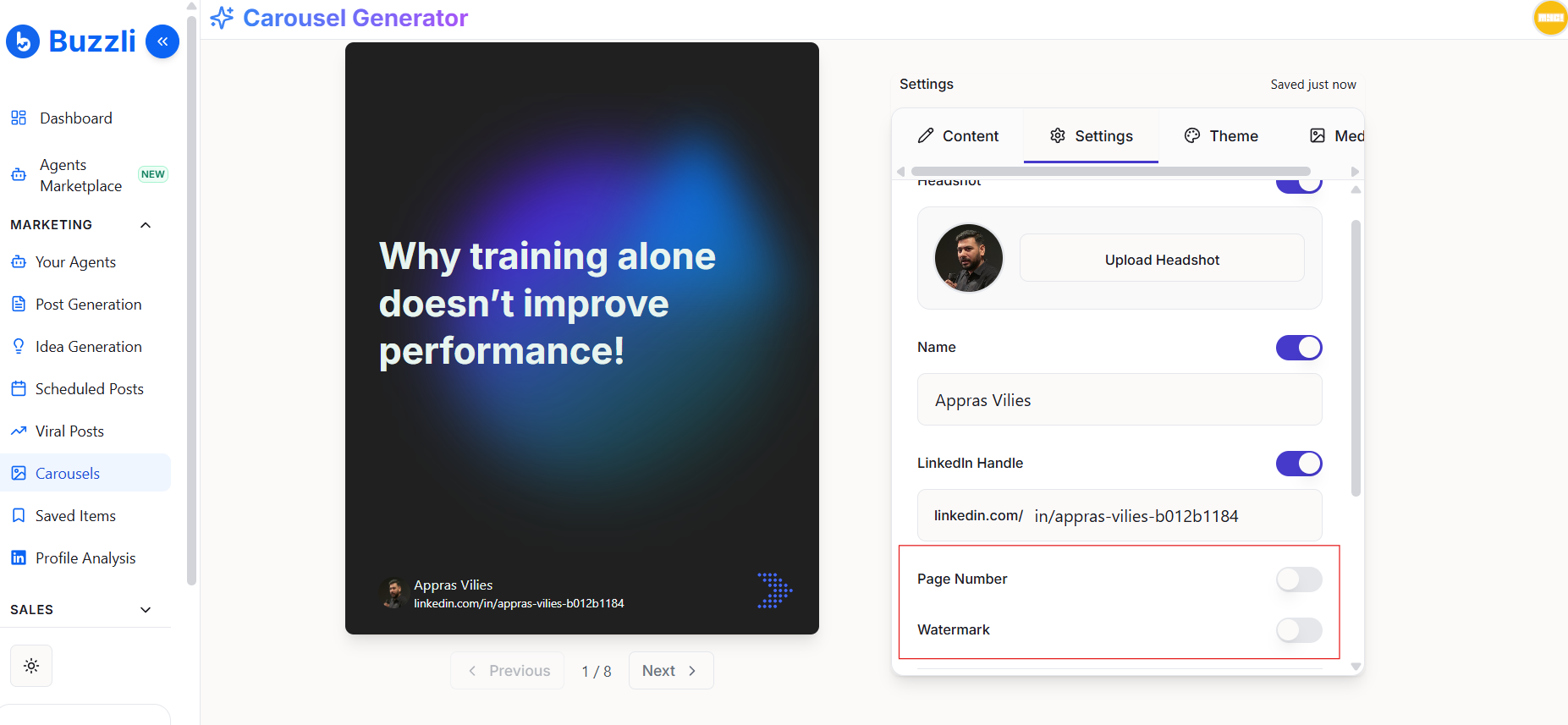
You also have the option to enable:
- Page Number → Helps users track slide progression
- Watermark → Adds branding to your carousel
👉 These features are available for Pro / Premium users.
🎨 Customize Theme & Design
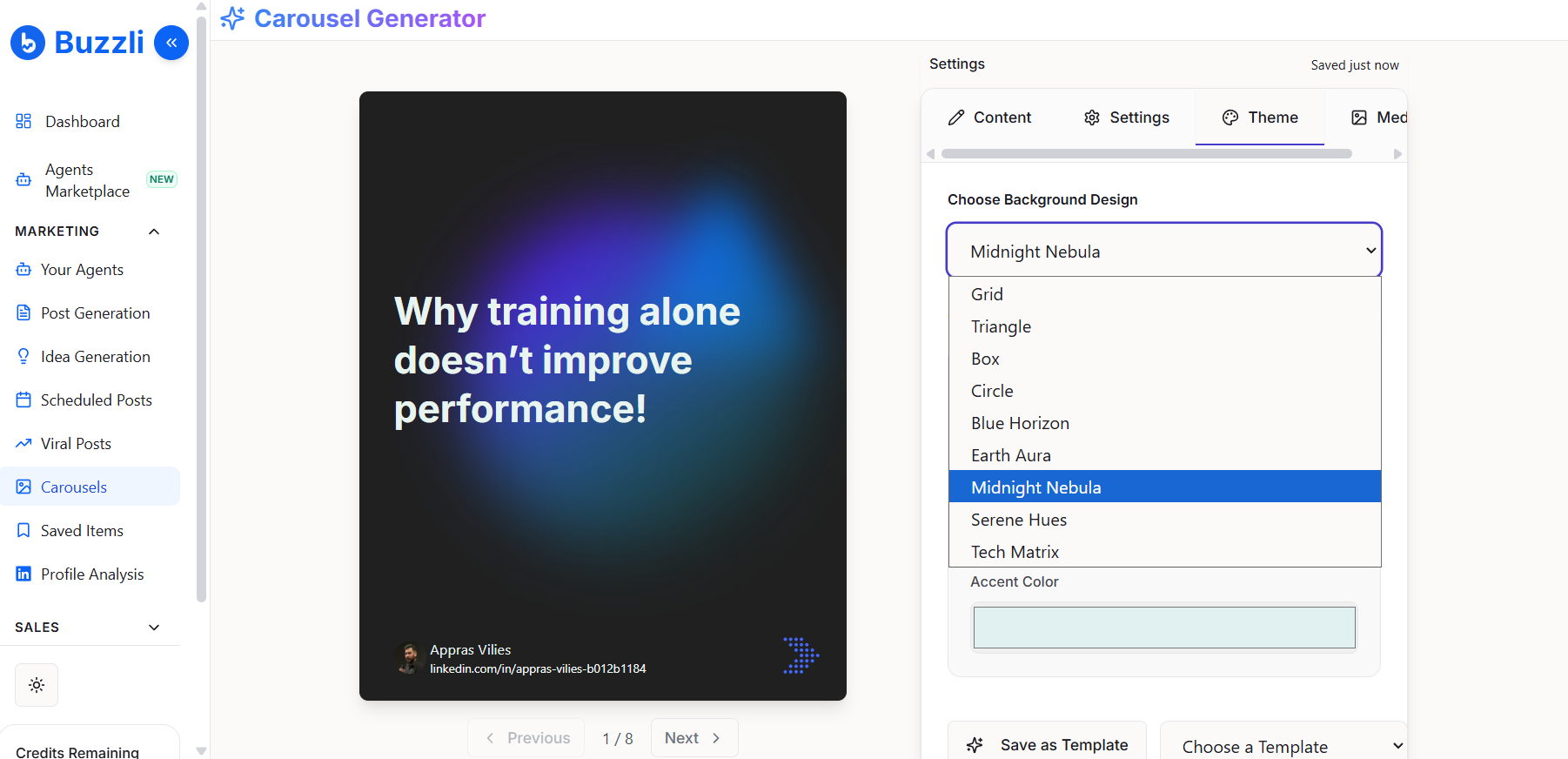
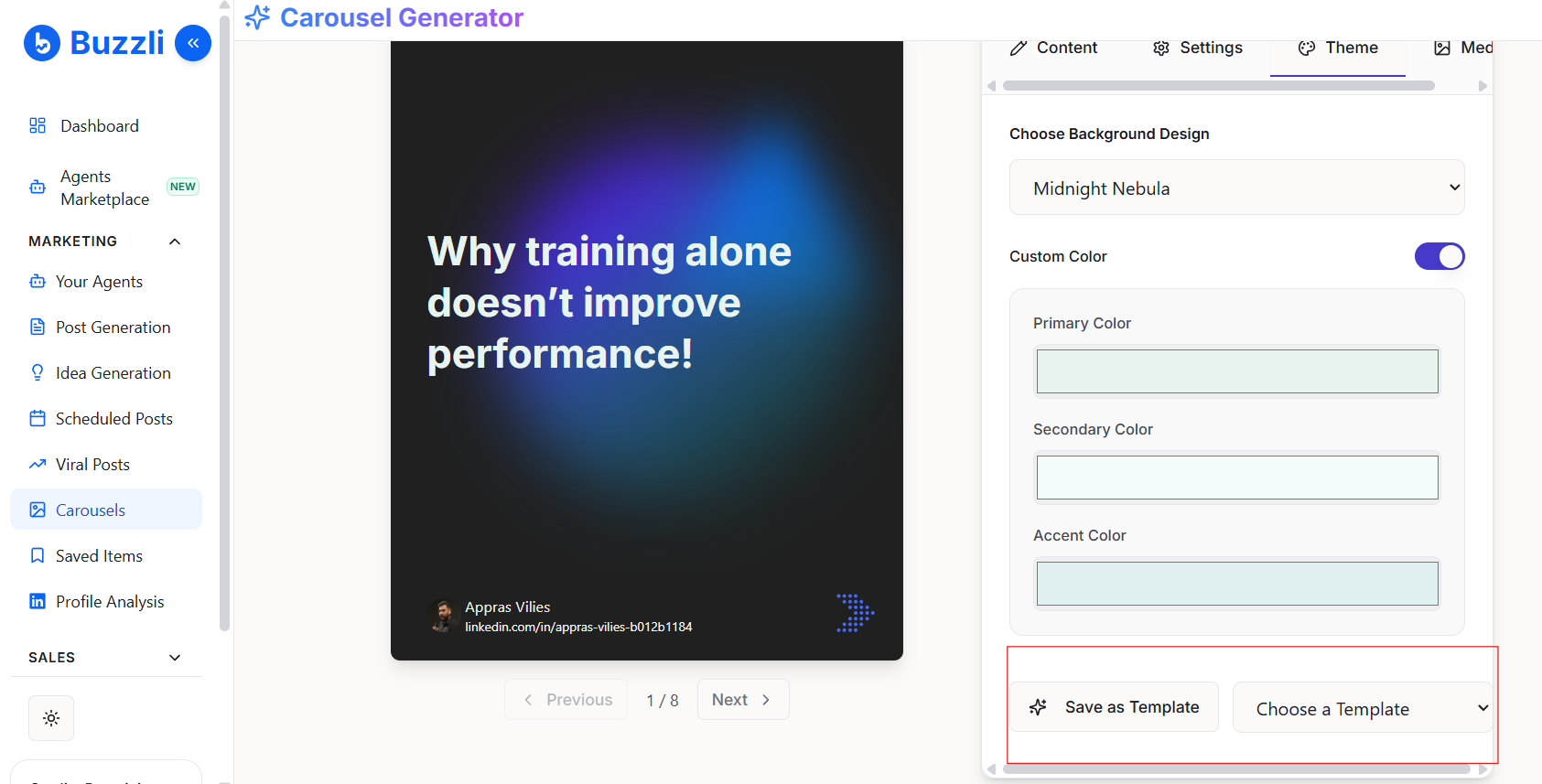
Go to the Theme tab. This is where you control the visual style of your carousel.
Choose a Background
Select from multiple themes like:
- Grid
- Triangle
- Circle
- Blue Horizon
- Earth Aura
- Midnight Nebula
- Serene Hues
- Tech Matrix
Each theme gives your carousel a different visual identity.
Customize Colors
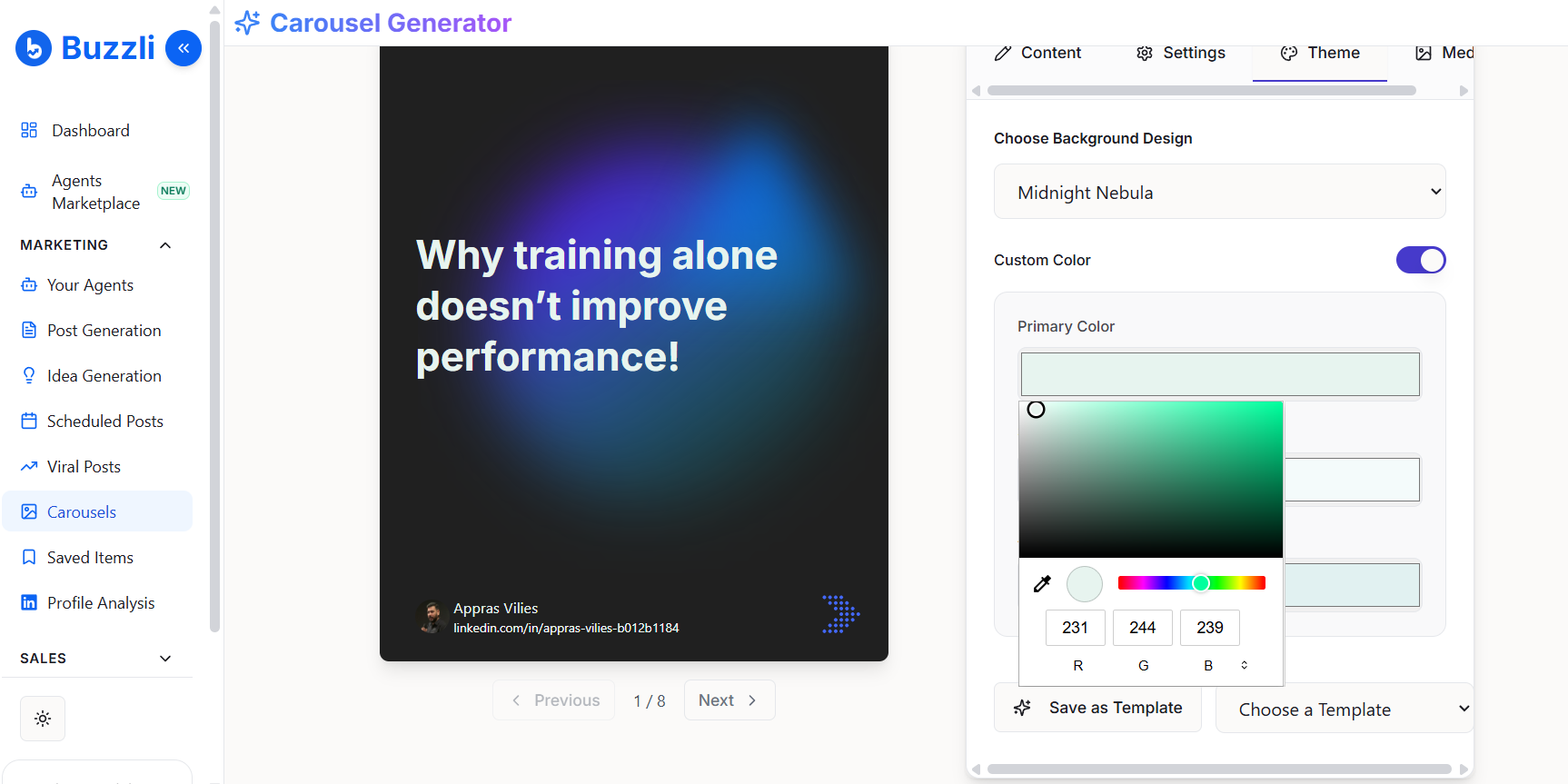
Enable Custom Color to personalize your design. You can adjust:
- Primary Color
- Secondary Color
- Accent Color
This helps match your carousel with your personal or brand colors.
💾 Save Your Template
Once you're happy with your design:
- Click Save as Template to reuse this style later
- Or select from existing templates using Choose a Template
This is useful if you want consistent branding across all your posts.
🔁 Quick Flow
Settings → Theme → Colors → Save Template
⚡ Pro tip
Consistency builds recognition.
- Use the same theme, colors, and layout across your carousels
- Over time, people start recognizing your content instantly