How to Create a Professional LinkedIn Headshot with AI
A professional headshot is one of the most important elements of your LinkedIn profile.
But getting one usually means:
- Booking a photographer
- Renting a studio
- Wearing formal attire
- Spending time and money
For many professionals, that setup is not practical.
The good news?
With AI tools like Google Gemini, you can now generate a realistic, professional LinkedIn headshot - without leaving your desk.
Below is the exact step-by-step process.
Why Your LinkedIn Headshot Matters
Before we jump into the steps, it's important to understand why this matters.
Your profile photo:
- Creates the first impression
- Signals professionalism
- Builds trust instantly
Profiles with professional headshots receive:
- More profile views
- Higher connection acceptance rates
- Better engagement
If your current photo is blurry, cropped poorly, or taken casually, upgrading it can significantly improve perception.
Example of an AI-Generated Professional Headshot
Below is an example of the kind of professional headshot you can generate using AI.
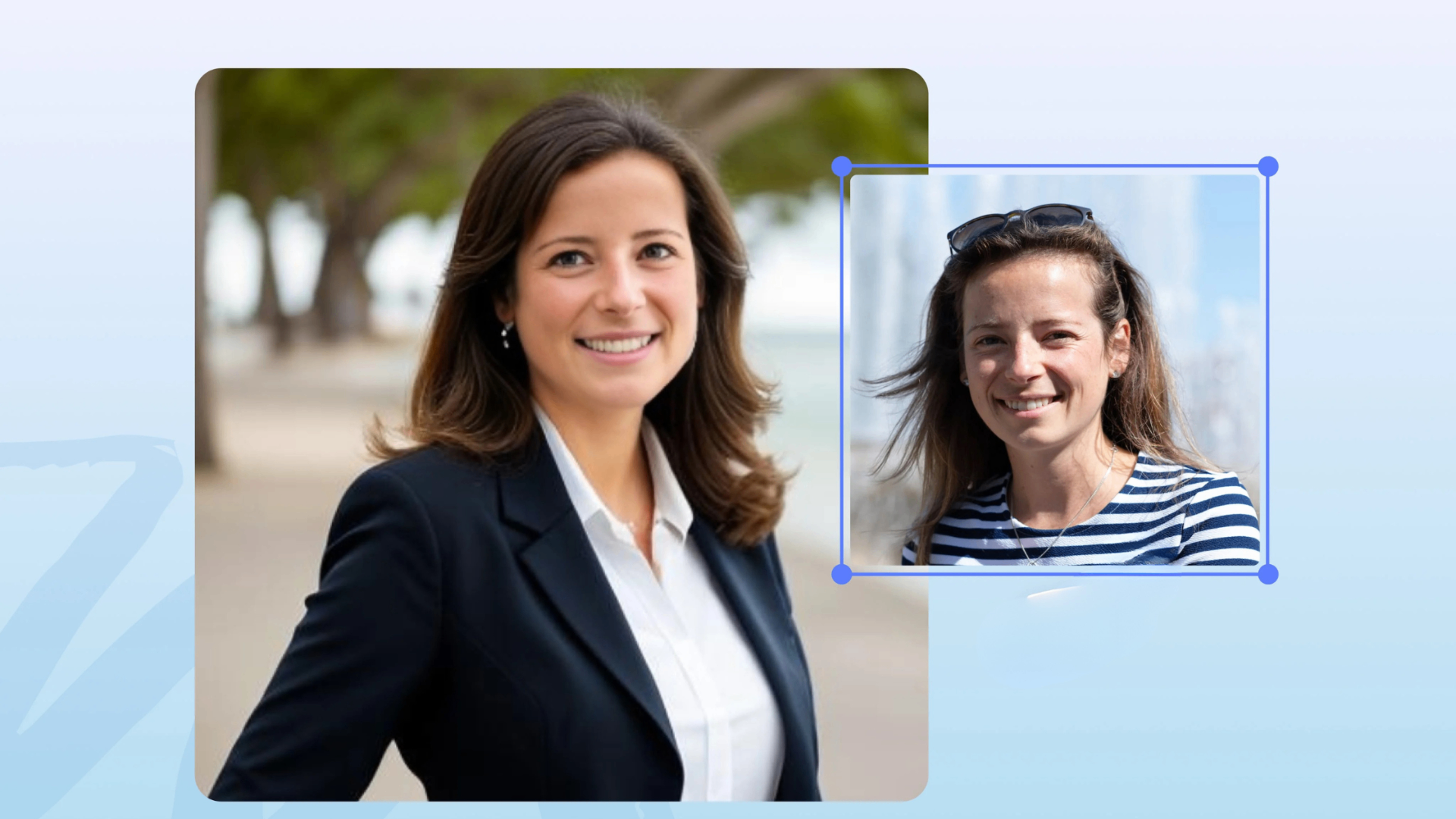
The goal is:
- Clear face visibility
- Neutral or dark background
- Soft studio lighting
- Professional attire
- Confident expression
Now let's walk through the process.
Step-by-Step: How to Generate a Professional Headshot with AI
Step 1: Keep a Clear Photograph Ready
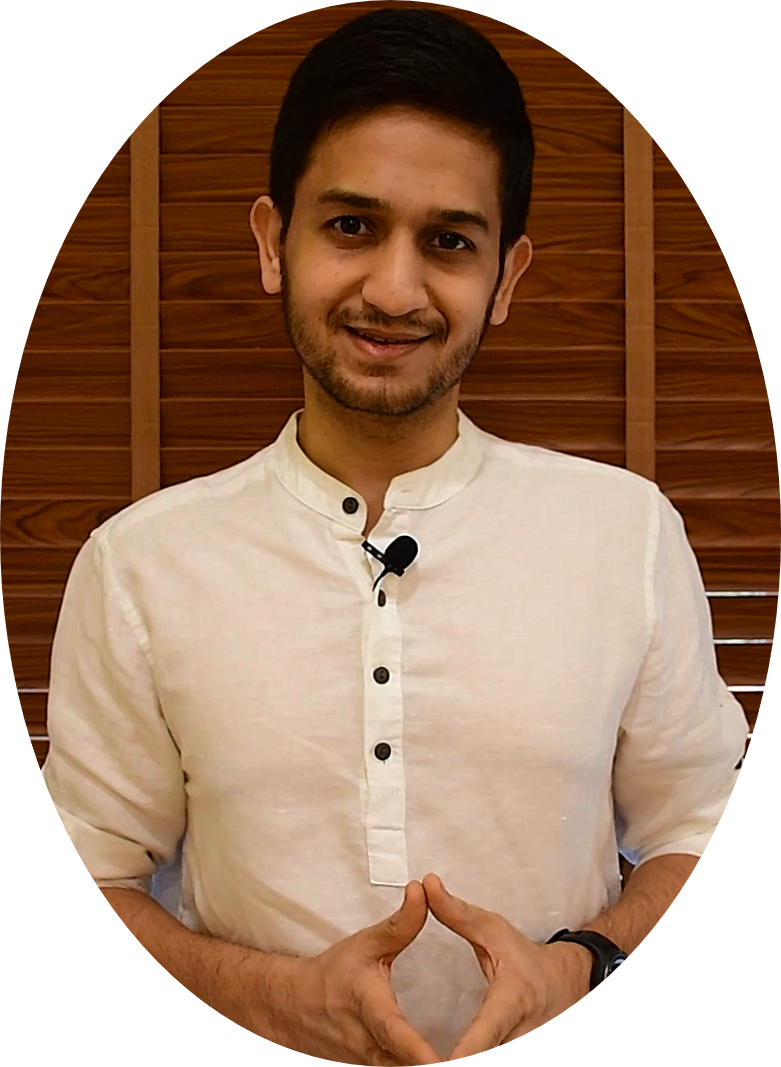
Start with a clear image of yourself.
Make sure:
- Your face is clearly visible
- There is good lighting
- The image is not blurry
- No sunglasses or heavy filters
- Minimal background distractions
You don't need a perfect photo - just a clear one.
Even one single image is enough.
Step 2: Open Google Gemini
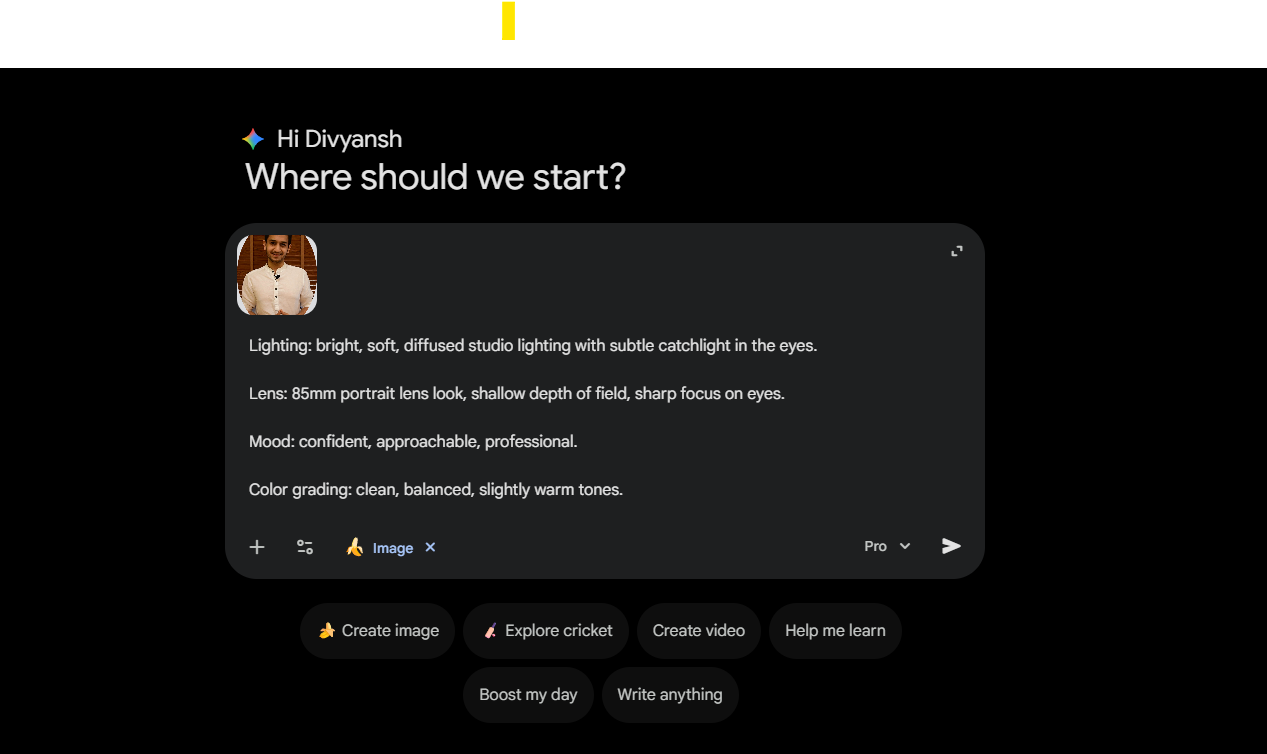
Go to Google Gemini.
Inside Gemini:
- Choose the "Create Image" option
- Upload your photograph
Step 3: Paste This Prompt
After uploading your image, paste the prompt below.
🔹 AI Professional LinkedIn Headshot Prompt
You can tweak:
- Background color
- Outfit style
- Lighting tone
But always preserve:
- Your natural identity
- Realistic skin texture
Step 4: Generate the Headshot
Once you submit the prompt, Gemini will generate your AI headshot.
You can:
- Regenerate if needed
- Slightly adjust the prompt
- Try a different background
Within minutes, you'll have a professional-looking image ready for LinkedIn.

Step 5: Upload It to LinkedIn
Once satisfied:
- Go to your LinkedIn profile
- Click on your profile picture
- Upload the AI-generated headshot
- Adjust framing
- Save
Your profile instantly looks more polished.
Why This Method Works
AI-generated headshots work because they:
- Simulate professional studio lighting
- Remove background distractions
- Improve clarity and framing
- Maintain your identity
And unlike traditional photography:
- No studio booking
- No wardrobe change
- No expensive sessions
One image is enough.
Best Practices for AI LinkedIn Headshots
To make sure your headshot looks authentic:
- Avoid over-editing
- Keep expression natural
- Choose simple backgrounds
- Don't use exaggerated glamour lighting
- Ensure it still looks like you
LinkedIn is a professional platform - realism builds trust.
Final Thoughts
A strong LinkedIn presence starts with strong visuals.
With AI tools like Google Gemini, creating a professional LinkedIn headshot is no longer expensive or time-consuming.
All you need:
- One clear photograph
- The right prompt
- A few minutes
And you're ready to upgrade your LinkedIn profile.
Analyze Your LinkedIn Profile with Buzzli →
Create an amazing linkedin profile with this ultimate pack →
Frequently Asked Questions
Q: Can I use an AI-generated headshot on LinkedIn?
Yes, you can use an AI-generated headshot on LinkedIn as long as it accurately represents you. The image should look realistic, professional, and clearly reflect your true identity. Avoid over-edited or heavily stylized versions that may appear artificial.
Q: What is the best AI tool to create a LinkedIn headshot?
Tools like Google Gemini and other AI image generators can create professional LinkedIn headshots. The key factor is not just the tool, but the quality of your original image and the prompt you use to generate a realistic studio-style portrait.
Q: Do I need multiple photos to generate a professional AI headshot?
No. In most cases, a single clear, well-lit photo is enough. As long as your face is clearly visible and the image quality is decent, AI tools can generate a professional-looking LinkedIn headshot from one photograph.
Q: What makes a good LinkedIn profile picture?
A strong LinkedIn profile picture should:
- Show your face clearly
- Use neutral or professional backgrounds
- Have good lighting
- Present a confident and approachable expression
Studio-style lighting and chest-up framing usually work best for LinkedIn.