How to Create LinkedIn Carousels with AI (Step-by-Step Guide)
Learn why LinkedIn carousels get high engagement and discover how to create stunning LinkedIn carousels with AI tools like Buzzli - step-by-step, with examples.
LinkedIn carousels have become one of the most powerful formats to grab attention and drive engagement. Unlike plain text or single-image posts, carousels encourage people to stop scrolling, swipe through, and spend more time on your content.
But here's the challenge - designing professional-looking carousels usually requires tools like Canva or PowerPoint, plus hours of creative effort.
Table of Contents
- What Are LinkedIn Carousels?
- Why Are LinkedIn Carousels So Popular?
- Why Do LinkedIn Carousels Get So Much Traction?
- How to Create LinkedIn Carousels with AI (Step by Step)
- Best Practices for LinkedIn Carousels
- Conclusion
What Are LinkedIn Carousels?
LinkedIn carousels are multi-page, swipeable posts (PDF format) where each page acts like a slide. They allow creators to break down complex ideas, share frameworks, or tell stories visually.
Instead of reading long paragraphs, your audience gets bite-sized insights presented in a clean, scroll-stopping design.
👉 Example carousel topics:
- "5 Mistakes to Avoid in Your Startup Pitch"
- "Step-by-Step Guide to Mastering LinkedIn Personal Branding"
- "Top 10 AI Tools to Boost Productivity"
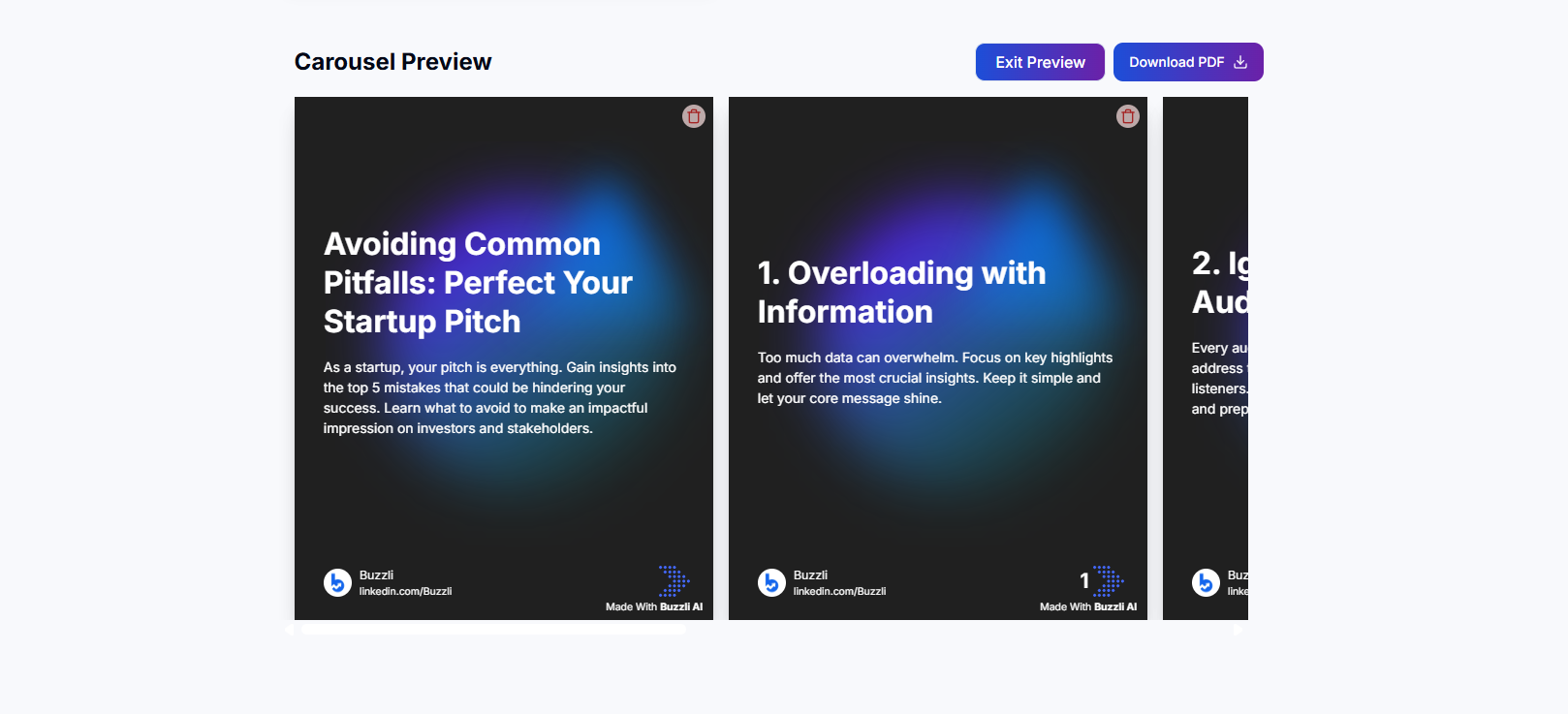
Example of a professional LinkedIn carousel about startup pitches
Why Are LinkedIn Carousels So Popular?
There are a few reasons LinkedIn carousels are exploding in popularity:
- High Engagement – Carousels encourage swipes, which sends LinkedIn positive signals that people are interacting.
- Storytelling Power – Perfect for breaking down processes, frameworks, and case studies.
- Shareability – Easy for viewers to save or share with their network.
- Personal Branding – Carousels make you look like an authority by packaging your knowledge visually.
Why Do LinkedIn Carousels Get So Much Traction?
Carousels work because they hack LinkedIn's algorithm and human psychology at the same time:
- Time Spent = More Reach: Since people swipe through multiple slides, LinkedIn registers higher "dwell time," boosting visibility.
- Digestible Content: People prefer short, visual learning over text-heavy content.
- Hook and Curiosity: A strong first slide makes users curious enough to swipe.
💡 Pro Tip: Always use a hook on your first slide like "7 Secrets to…" or "The Ultimate Framework for…"
How to Create LinkedIn Carousels with AI (Step by Step)
Now, let's get into the real action - creating carousels with Buzzli. Unlike traditional design tools, Buzzli automates both content writing and design generation for you.
Here's the process:
Step 1: Log in to Buzzli
Go to Buzzli.io and sign in.
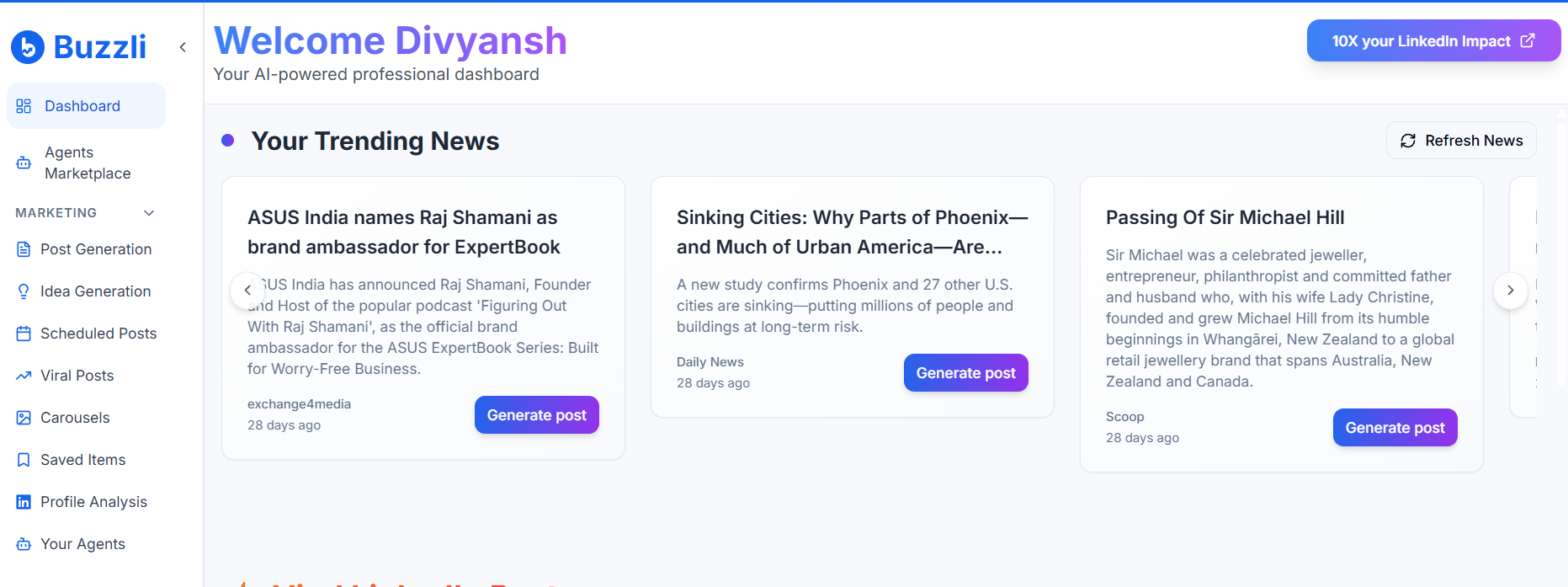
Buzzli Dashboard
Step 2: Choose 'Carousel Generator'
From the dashboard, select Carousel Generator.
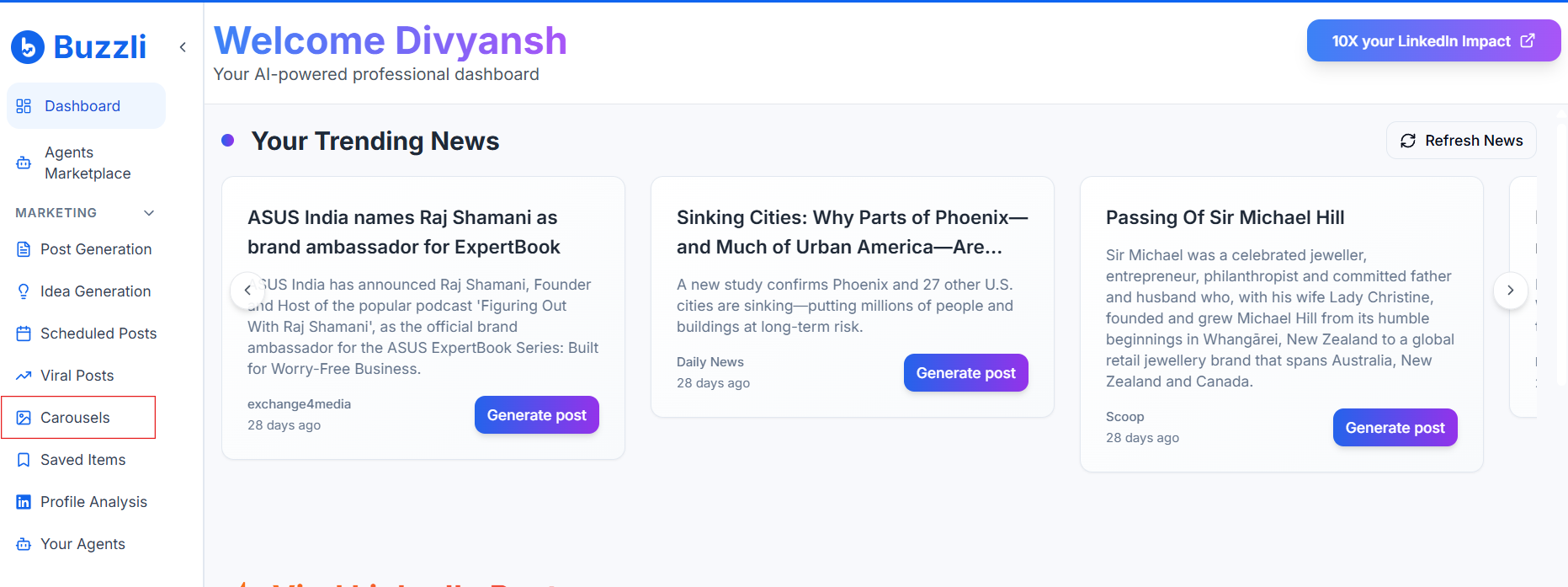
Navigate to the Carousel Generator from your dashboard
Step 3: Enter Your Topic
Type in the topic you want a carousel for. Example: "How to Build a Personal Brand on LinkedIn".
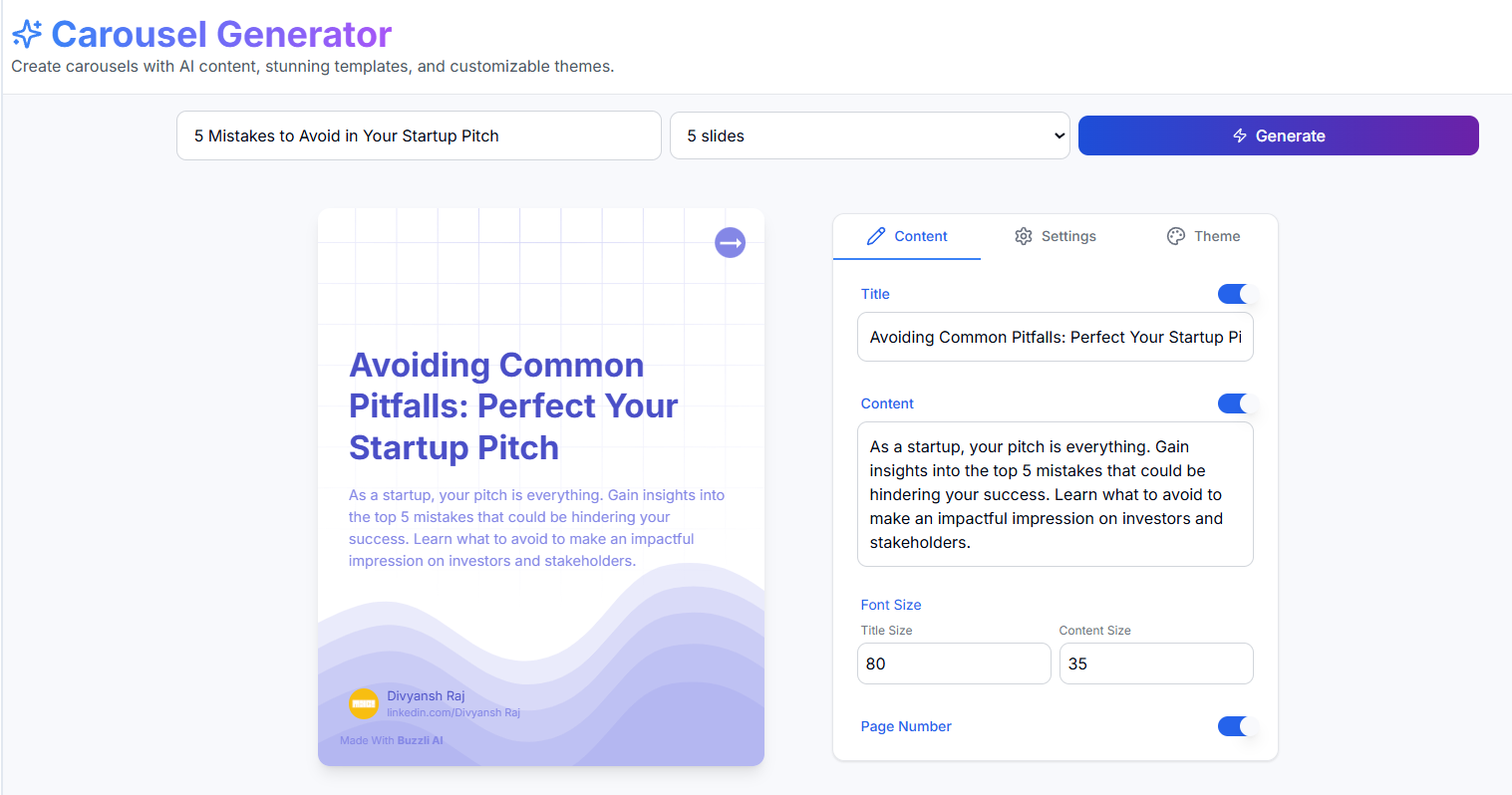
Enter your topic and Buzzli's AI will generate structured slides
Buzzli's AI will instantly generate structured slides with hooks, points, and CTAs.
Step 4: Customize the Style
You can tweak:
- Number of slides
- Tone (professional, casual, motivational)
- Brand colors & fonts
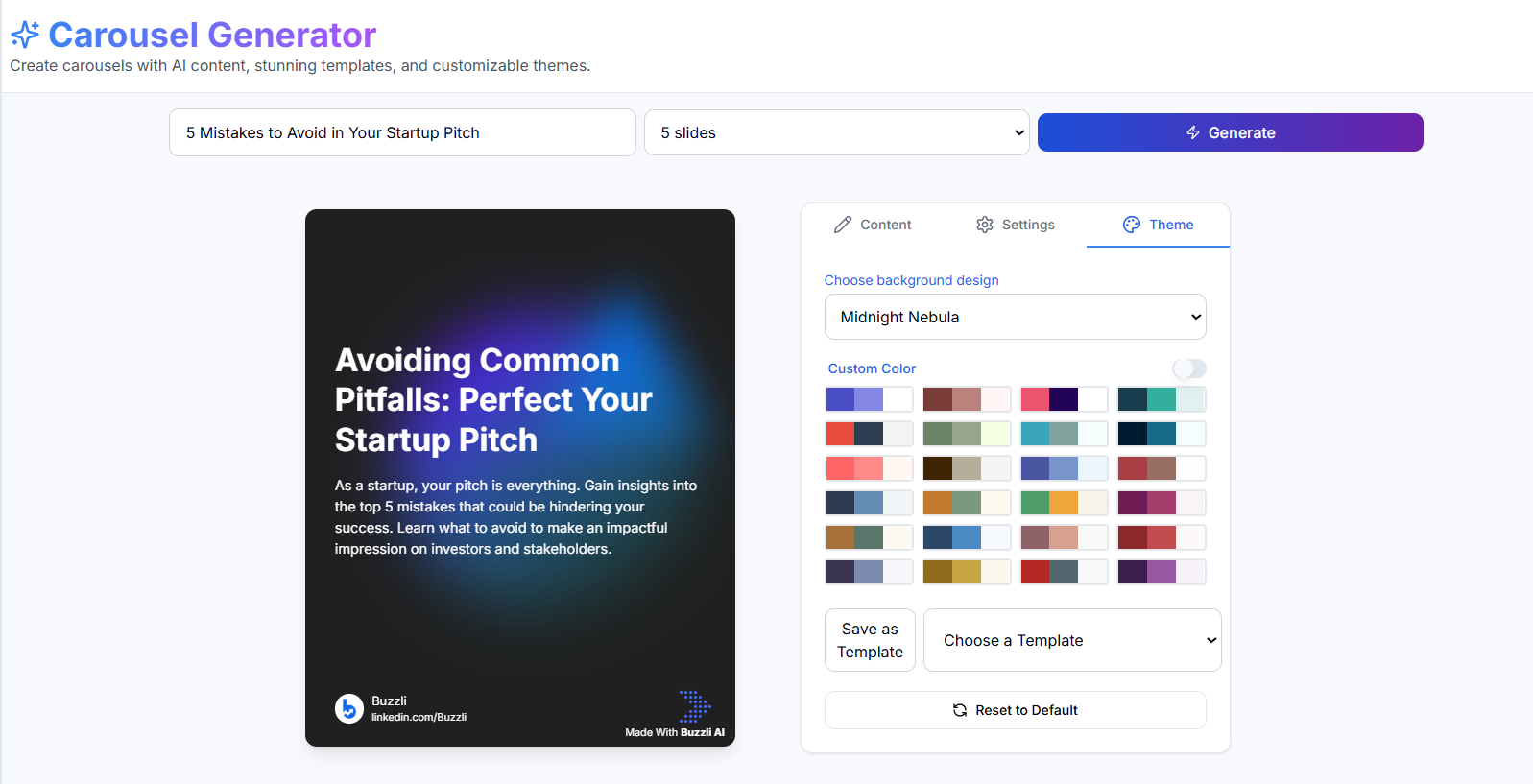
Customize your carousel with different themes, colors, and settings
Step 5: Preview & Download
Once done, preview your carousel and export it as a PDF. This is the exact format LinkedIn supports for carousel uploads.
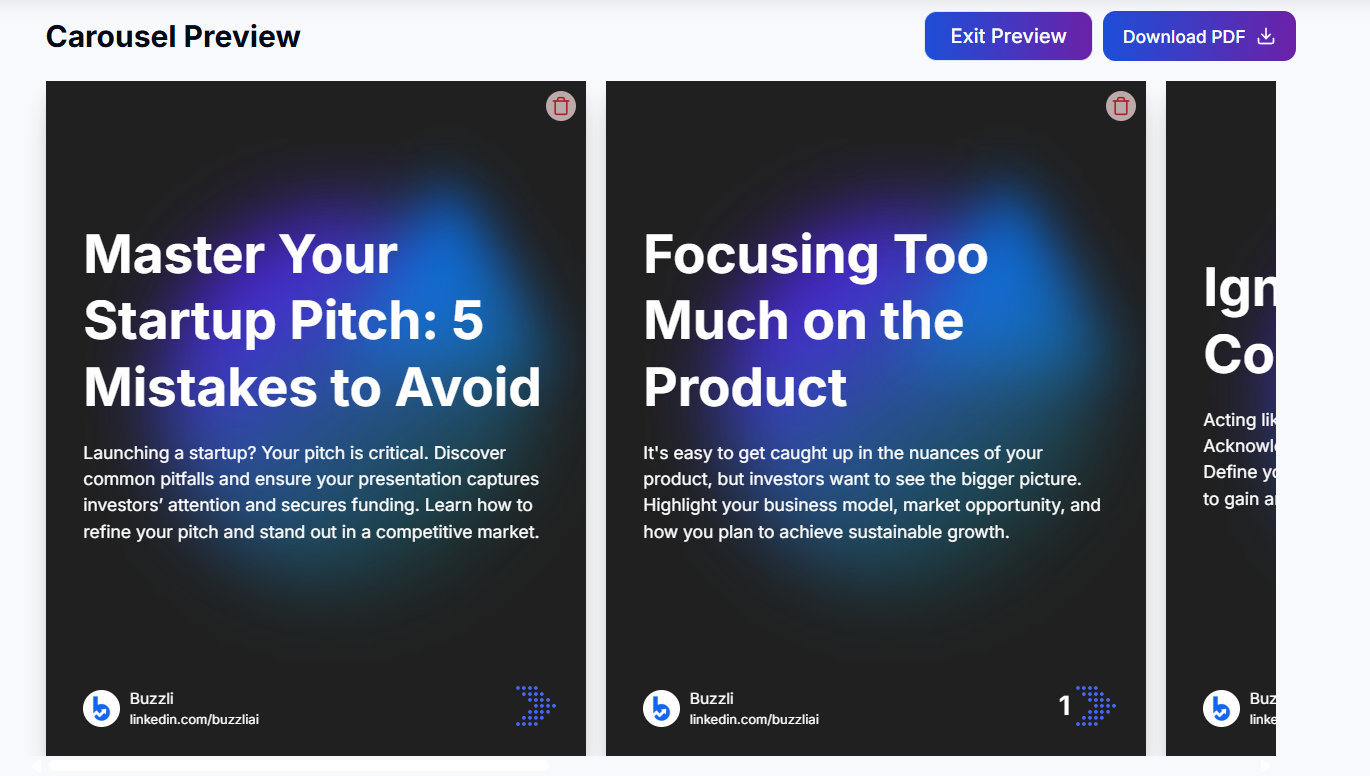
Preview your carousel and download as PDF for LinkedIn upload
Step 6: Upload to LinkedIn
Head to LinkedIn → Create Post → Upload PDF → Add a catchy caption → Post.
Done! Your AI-powered carousel is live. 🚀
Best Practices for LinkedIn Carousels
- Keep slides minimal (max 20–25 words per slide).
- Use contrasting colors for readability.
- Always end with a CTA slide (e.g., "Follow me for more insights").
- Maintain a consistent style to build brand recall.
Conclusion
LinkedIn carousels are one of the fastest ways to grow reach, build authority, and drive meaningful engagement. With tools like Buzzli, you no longer need hours of design work - AI helps you create professional carousels in just a few clicks.
👉 Ready to try it? Head over to Buzzli's LinkedIn Carousel Generator and create your first AI-powered LinkedIn carousel today.